

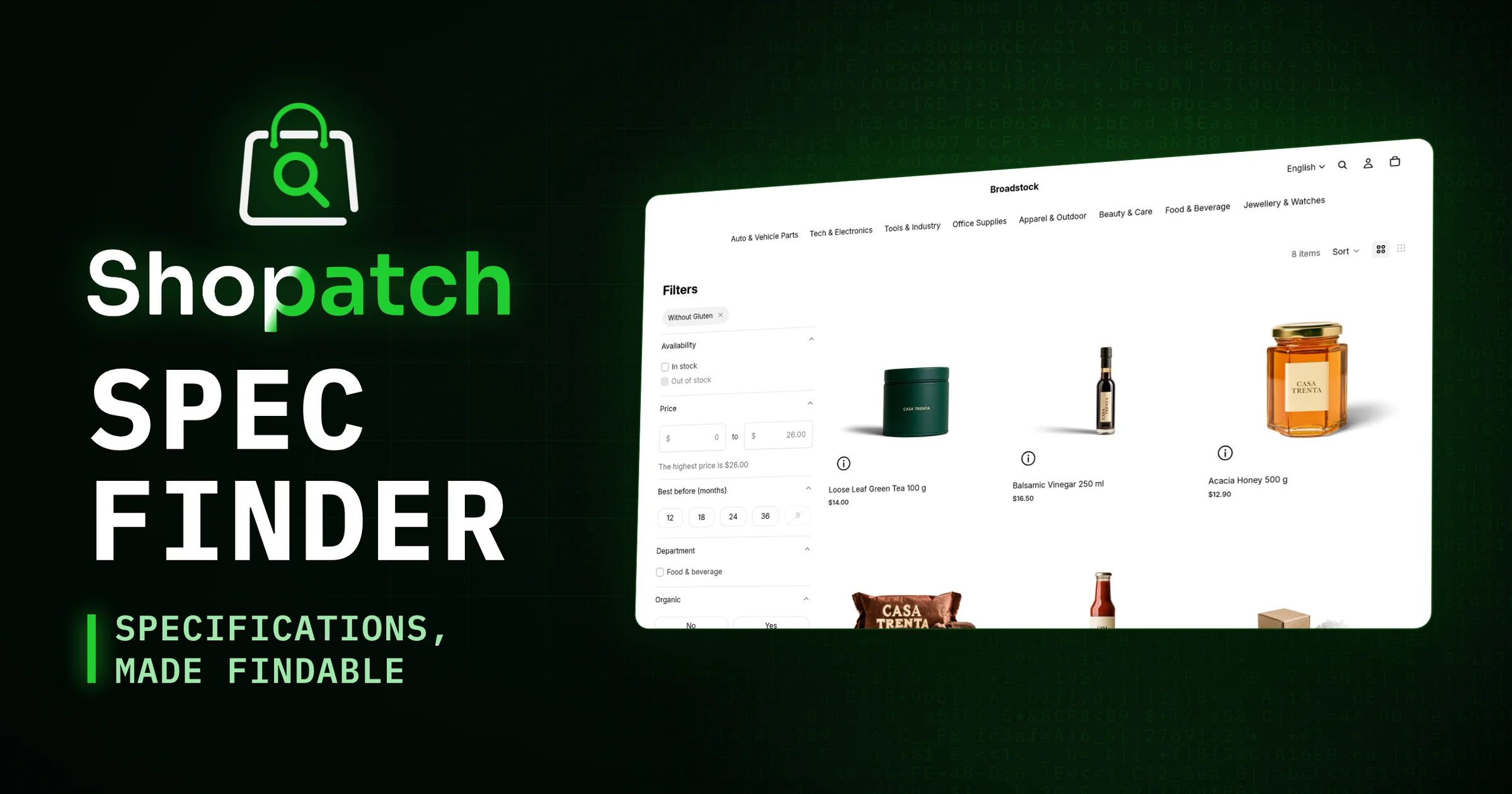
Filter Shopify products by technical specs: how Specfinder works
Short answer: Shopify filters by price, availability and variant options. A property like thread size, wattage or “fits a 2015 Golf” is not a variant but a fact about the product, and out of the box your store has no filter for it. Specfinder creates the fields for these facts as metafields in your store, derives filterable fields for Search & Discovery from your values, and adds nine blocks that show them on the page. The fields and values belong to your store and stay there, even if the app goes.
Anyone selling technical products knows the pattern. The customer knows exactly what she needs: 18 V, M8, at least 120 W, compatible with her printer. In the store she finds a collection of 400 items and a filter bar offering price and availability. So she opens one product page after another, reads the description and hopes the number is in there. Or she sends an email asking whether the part fits.
Why can’t Shopify filter by technical specs?
The building blocks exist. Shopify has metafields, custom fields on a product, and Shopify’s free Search & Discovery app can turn a metafield into a filter. What’s missing is everything in between: someone has to create the fields, get the values in, and shape them so a filter can be built from them.
A theme can’t close that gap, not even an expensive niche theme. Themes are not allowed to ship metafield definitions. They can display fields that already exist, but they can’t create any. An app can, and that is where Specfinder comes in.
| What the customer asks | Shopify alone | with Specfinder |
|---|---|---|
| Which items have at least 120 W? | no filter, only description text | filter built from the spec table |
| What fits my vehicle? | no compatibility model | vehicle picker, garage, yes or no on the product page |
| Which products are gluten-free? | not possible, filters have no NOT | derived exclusion filter |
| How do these two models differ? | switching between product pages | comparison table on the same rows |
| Is there a data sheet? | a link somewhere in the description | document list on the product |
Who owns the data?
Metafields can be created in two ways. In the app’s own namespace they belong to the app, need fewer permissions and disappear with it. Or as regular merchant fields, in which case they stay in the store whatever happens to the app.
Specfinder deliberately uses the second way. If you uninstall the app or cancel the paid plan, you lose the blocks, not a single value. The specs stay on the product, visible in the admin and readable through the API, and any theme or other app can keep using them. Your catalog work is never held hostage by a subscription.
How do metafields become filters?
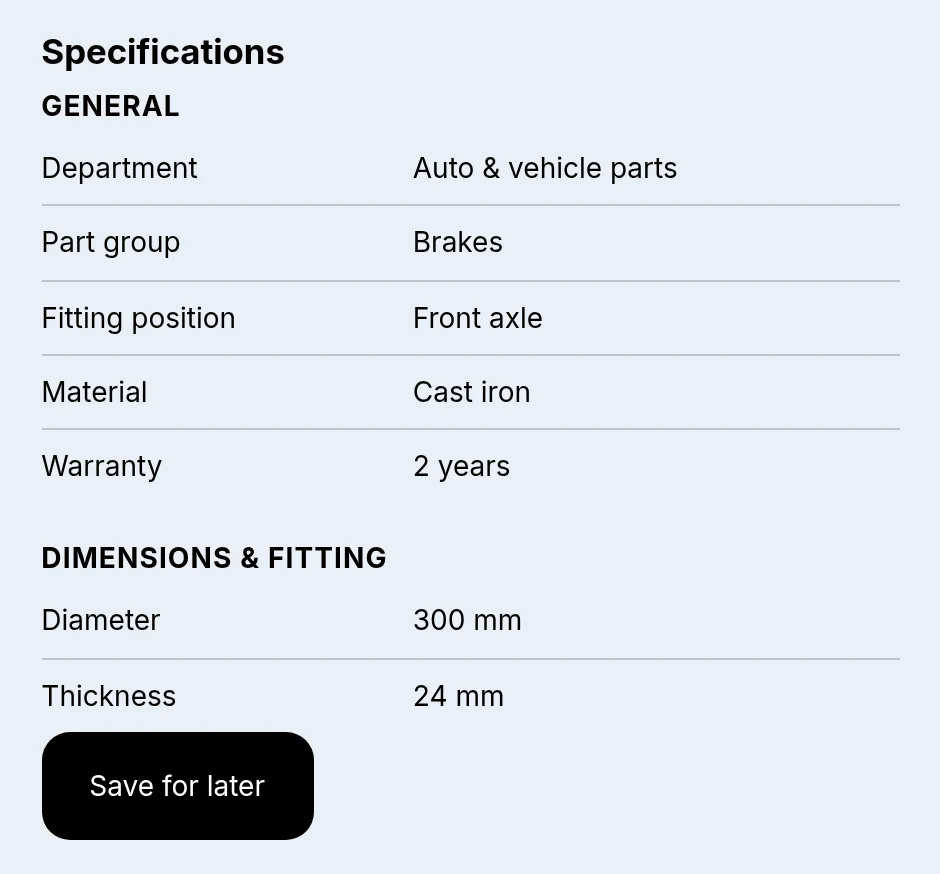
You maintain one thing: a specification table per product, with rows like “Power 120 W” or “Material aluminium”. That table is good for reading, but Shopify can’t filter by it. So the app derives a separate, filterable metafield for each property. “Power” becomes a field that carries each product’s power rating, and that field can be added as a filter in Search & Discovery.
One consequence is easy to miss: after the first run, your store has filters for technical data in its regular filter bar. That takes none of our blocks, the theme shows them like any other filter.
You don’t have to define ranges either. Shopify combines several values of the same filter with OR and different filters with AND. “At least 120 W” therefore becomes “120 W or 180 W or 250 W”, built from the values that actually occur in your catalog. When a 300 W product is added, it is included after the next run.
How do you filter Shopify products by what they don’t contain?
There is one question Shopify’s filter bar can’t answer at all: “nut-free”, “gluten-free”, “nickel-free”. There is no NOT. You can only filter by values a product has.
So Specfinder turns the data around instead of the filter. You keep maintaining what is in a product. The app derives what is not in it and stores that as a field of its own. After that, “gluten-free” is an ordinary filter Shopify understands. The value is written in your store’s language and can be translated like any other metafield value.
A product finder without dead ends
A filter bar isn’t the right shape for everyone. The product finder block asks for requirements one by one and ends with what qualifies. Nothing in it is hard-wired, it builds its questions from your data: the same block asks for power, weight and material in a tool store and for storage, connector and standard in electronics.
The annoying part of filters is the combination that returns nothing. Two clicks and the list is empty. The finder knows in advance how many products a choice leaves when combined with the earlier ones. When deriving, the app stores a compact list of the products carrying each value, and the browser intersects these lists on every click. That takes microseconds and needs no request to any server. The customer sees that a choice leads nowhere before she clicks it.
Does this part fit my vehicle?
In the parts trade, one question decides the sale. In a sample of 19 auto themes from the Shopify Theme Store, none had a vehicle picker based on a real compatibility model, and none had a garage.
Specfinder creates that model: vehicles or devices as entries of their own, and on each product the list of what it fits. Three things come out of it. The compatibility picker, the year/make/model lookup known as YMM, narrows down step by step by make, model, year and engine and then leads to the matching parts. The garage remembers the choice across all pages, in the customer’s browser, with no account and no server. And the product page shows a clear yes or no for the selected vehicle.
“Vehicle” is only the default. For printers the same sentence reads “Fits your model”, for power tools “Fits your battery system”, and you name the picker’s steps yourself, for example brand, series and model. The mechanics stay the same, only the wording changes with the trade.
One Shopify limit hides in the details. A theme block gets to see at most 50 entries of such a list, even when there are 5,000, and it has no way of noticing. A picker built on that shows a fraction of the vehicles without any error. Specfinder therefore precomputes the vehicle list once and stores it in the shop: up to roughly 1,400 vehicles in a shop metafield, beyond that as a file on the store’s CDN.
Part numbers, documents and the rest
The remaining blocks show what is already on the product, just where people look for it. Part numbers lists SKU, MPN, OEM number and EAN with labels you adapt to your trade: what the spare parts trade calls an “OE number” is an “order number” for tools. Documents such as data sheets, manuals and certificates are attached to the product and listed on the page instead of getting lost as a link in the description. Product details split longer information like what’s in the box, fitting or care into sections of their own.
For choosing between two items there is the comparison table. The customer saves products from the product page and then sees them side by side, row by row on the same properties. This list, too, lives only in her browser. Finally, quick view shows the key values right on the collection page, without leaving the list.
All nine are app blocks you place in the theme editor. The app writes no line into your theme, loads nothing from third parties and leaves nothing behind when uninstalled. It works with any Online Store 2.0 theme and has been verified on Dawn, Craft and Horizon.
What does a store get out of it?
The first gain is for customers: anyone arriving with a precise requirement finds the right items through filters instead of reading descriptions. The product page answers “does it fit?” itself, before the question lands in your inbox.
The second is in your catalog. Technical details no longer sit as prose in 400 descriptions but as data in fields. That pays off well beyond the app: in product feeds, in structured data for search engines and AI search, in the next theme switch, and in any analysis you may want to run later.
The third is language. Values can be translated per storefront language, and the filters match on the translated values. A French customer filters in French once you have translated filter names and values under Localization. The app’s interface and the block labels are available in English, German, Spanish, French, Italian, Dutch and Portuguese.
When the catalog moves
Derived filters are a snapshot. A product created after the last run has no derived values yet and is missing from every filter. A changed formula can leave an old “free from” claim in place.
The app notices. It marks the derivation as stale and emails you, at most once a day. It does not quietly recalculate, and that is on purpose: a new value changes what the filters offer, and that should be a run you start and see.
What the app does not do
It doesn’t invent data. The app builds the fields; what goes into them is your knowledge of your catalog, entered by hand or imported from a spreadsheet. The import shows what it would change first and only writes after that.
It doesn’t set up Search & Discovery for you. A derived filter only appears in the filter bar once it has been added there. Shopify skips a filter it doesn’t know without any message and returns the full collection. The guide walks you through this step.
And it doesn’t see your pages. The app reads the catalog through the Admin API, so it knows which values exist, but not which blocks you placed where.
Pricing
The free plan includes all nine blocks, your own fields and values, and the derived filters. It is not a trial and it doesn’t expire. For 29 USD per 30 days you add starter packs for eight trades, from auto parts through tools and office supplies to cosmetics and food, plus spreadsheet import and a vehicle list beyond 50 entries.
Frequently asked questions
Can Shopify filter products by technical specifications?
Not on its own. Shopify filters by price, availability, product type, vendor and variant options. Technical data needs metafields with one value per property, set up as filters in the Search & Discovery app. Specfinder creates these fields and derives them from a specification table on each product.
Do I need a Specfinder block in my theme for the filters to work?
No. The derived filters are ordinary metafield filters from Search & Discovery and show up in the regular filter bar of any Online Store 2.0 theme. The blocks add the spec table, product finder, vehicle picker and comparison on top.
What happens to my data if I uninstall Specfinder?
It stays in your store. Specfinder creates the metafields as merchant-owned definitions, not in the app’s own namespace. Uninstalling removes the blocks; the fields and values stay on your products.
How many vehicles can the year/make/model picker show?
Without precomputing, a theme block in Shopify sees at most 50 entries of such a list. Specfinder precomputes your vehicle list and stores up to roughly 1,400 vehicles in a shop metafield, beyond that as a file on the store’s CDN. Precomputing is part of the paid plan.
Can Shopify exclude products, for example gluten-free?
Shopify’s filters have no NOT. Specfinder therefore derives what a product does not contain from the ingredients you maintain and stores it in a field of its own. After that, “gluten-free” is an ordinary filter.
How much does Specfinder cost?
The free plan includes all nine blocks, your own fields and values, and the derived filters, with no expiry. For 29 USD per 30 days you add starter packs for eight trades, spreadsheet import and a vehicle list beyond 50 entries.
What’s next
Specfinder is available in the Shopify App Store. How setup works step by step, with screenshots and sample files for every trade, is in the guide. An overview of all blocks is on the Specfinder page. If your catalog has quirks that fit no template, get in touch and we’ll look at it together.