

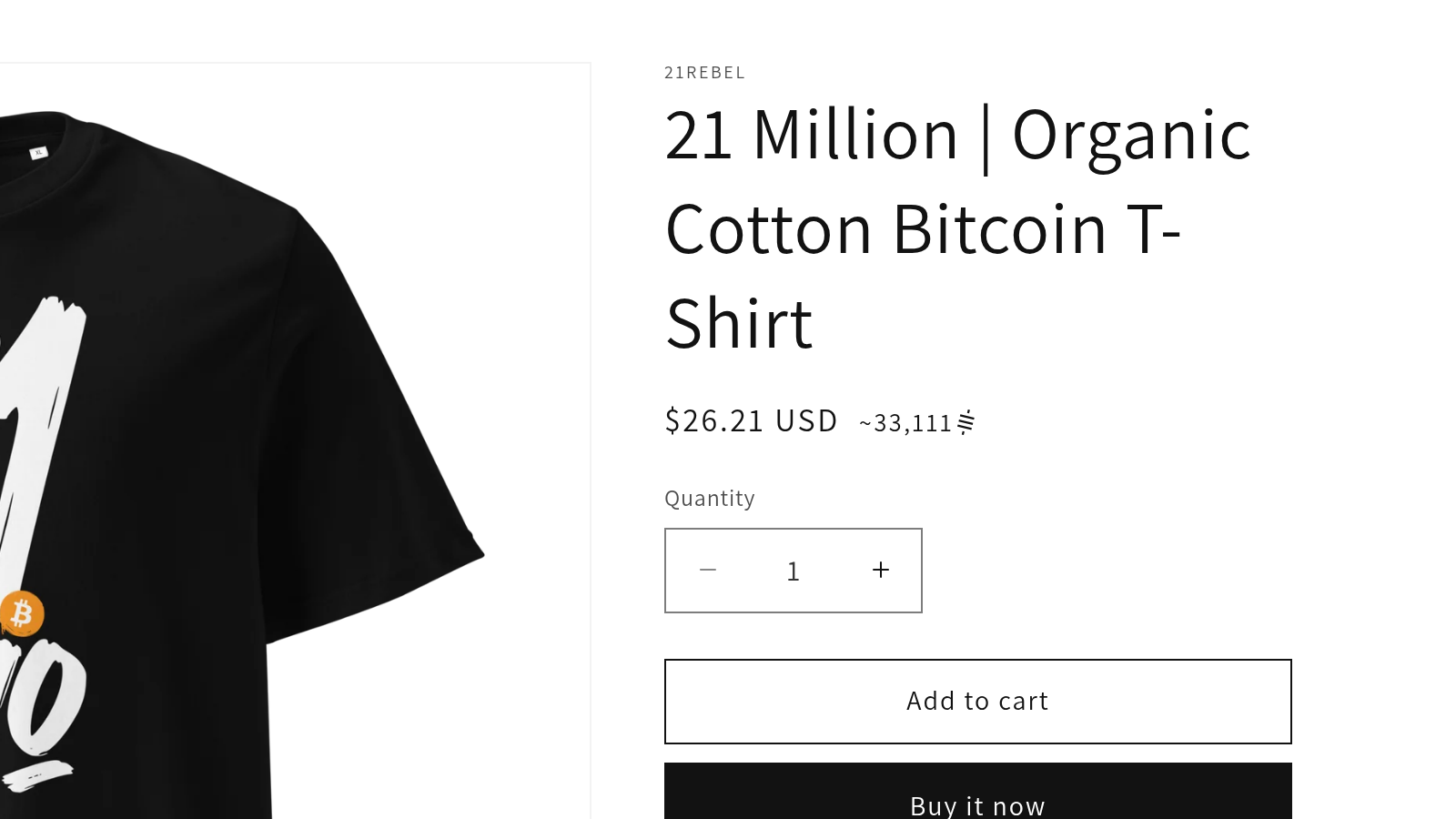
Show Shopify Prices in Sats or Bitcoin, Next to Your Own Currency
Short answer: Sats Price adds the same amount in sats or bitcoin next to every price in your store. Your own currency stays the leading price and is never touched. The second price is smaller, it inherits font and colour from your theme, and it appears on product pages, in collection listings, in the cart drawer and in quick views. Setup is one theme embed and three or four settings. No theme file is edited, so uninstalling removes it completely.
Bitcoin-adjacent brands run into the same small problem again and again: the audience thinks in sats, the store thinks in euros or dollars, and the gap between the two is a mental conversion the customer has to do on every product page. Replacing the price outright is not an option. Tax, accounting and the customer’s own sense of what things cost all live in the shop currency. What actually helps is a second line that answers “how much is that in sats” without anyone leaving the page.
Why sats rather than BTC
21,000 sats reads more easily than 0.00021 BTC. Small amounts in BTC turn into a string of leading zeros exactly where a price needs to be scannable, and a customer comparing two items ends up counting decimal places instead of comparing products. Sats keep the number in the range people are used to reading.
Both units are available. If your audience prefers BTC, one setting switches the whole store over.
Where the second price shows up
Sats Price ships as a theme app embed, not as a block you place by hand. That is a deliberate decision, and it is the reason coverage is complete:
- product pages, including variant switches
- collection and search listings
- the cart page and the cart drawer
- quick views and any other price that arrives after the initial page load
Anything loaded by AJAX gets the second price as it appears. A block would only cover the spot where you placed it, and prices in a Shopify theme are not in one spot.
The app reads the amount that is actually on the page, so it converts from the currency the customer is currently seeing. In a store with several markets, a visitor in Switzerland gets their sats figure derived from the CHF price, not from a base currency they never see.
What you can set
Everything lives in the theme editor, under the app embed. There is no separate settings area inside the app.
| Setting | Options |
|---|---|
| Unit | sats or bitcoin |
| Symbol | the word “sats”, the sats symbol, the bitcoin logo, ₿, ⚡, your own image, or none |
| Symbol position | before or after the amount |
| Placement | beside the price or below it |
| Thousands separator | follow the store, dot, comma, thin space or apostrophe |
| Approximation sign | a tilde (~), a double tilde (≈) or none |
| Rounding | exact, or to 10, 100, 1,000 or 10,000 sats (268,400 sats, 0.002684 BTC) |
| Size and opacity | 50 to 100% of the price size, lighter through opacity |
| Weight | inherit from the theme, thin, normal, semibold or bold, plus italic |
| Where to show | home page, product pages, collections, search, cart, other pages and product cards, each on its own |
Two details are worth spelling out. The bundled symbols are inline SVG drawn in currentColor, so they take the colour of the surrounding text and stay legible in a dark theme. An <img> cannot inherit text colour and would sit there as a black shape. If you upload your own symbol, you paste a link to a file from Content → Files and the app draws it as a CSS mask, again in the text colour. Your file decides the shape, your theme decides the colour, and no foreign markup enters the page.
Where the rate comes from
The rate is fetched once a minute for the whole service, not once per store and not once per visitor. The same bitcoin costs the same in every store, so there is no reason to multiply the request. mempool.space leads for the seven currencies it knows (USD, EUR, GBP, CAD, CHF, AUD and JPY). Every other currency comes from Coinbase, with CoinGecko as the fallback, and if mempool.space is down, Coinbase covers those seven as well.
The storefront never talks to an exchange. It asks your own domain, through Shopify’s app proxy. That means no CORS setup, no third-party request from your customers’ browsers, and a request that Shopify has signed as coming from your shop.
What it does to your theme: nothing
No theme file is edited, no snippet is injected into theme.liquid, and nothing has to be removed by hand later. The settings live in block.settings, which means they travel with the theme: duplicate the theme and the configuration comes along, uninstall the app and the second price goes with it.
For the data question, the answer is equally short. The app stores exactly one table, the Shopify session. No customer data, no order data, no analytics. That is visible in the database schema rather than merely asserted in a listing.
Setting it up
- Install Sats Price from the Shopify App Store.
- Open Online Store → Themes → Customize, go to App embeds and switch on Sats Price.
- Choose unit, symbol and placement. Save.
That is the whole setup. There is nothing to place per template and nothing to configure per product.
What it deliberately does not do
It does not replace your price. It does not accept bitcoin as a payment method, and it does not pretend to: it is a display, not a checkout. It does not lock the price to a rate at checkout time, because the order is still settled in your shop currency. And it does not add a currency selector or a market, both of which are Shopify’s own job.
Price
2.10 USD per month, because there are 21 million bitcoin. The app is built as reach, not as revenue, and every decision in the code follows from that: the rate is shared across all stores, the storefront code is small, and there is no upsell layer.
Where to go from here
The product page at Sats Price has the screenshots. If you are running a bitcoin-adjacent store and want the second price to sit exactly right in a custom theme, get in touch and we will look at it together.